FT Comm User Guide
Reminder: FastTrack (our browser-based platform) eliminates all the manual update and backup tasks described in this guide. Learn about migrating to FastTrack.
Table of Contents
Download Tab
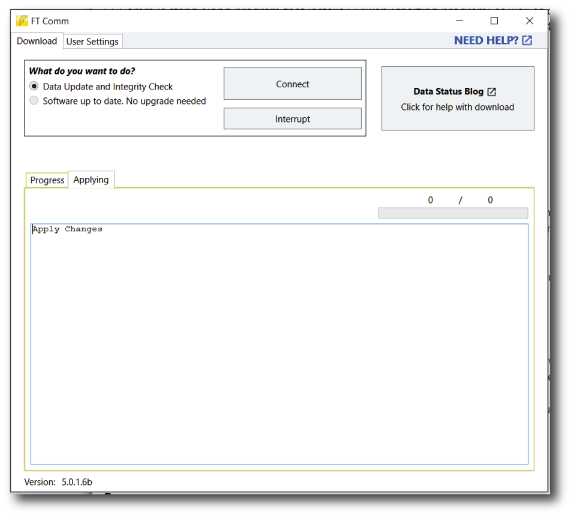
The Download tab is where you update your data and upgrade FT Comm software.
Update Data and Integrity Check
Select this radio button and click "Connect" to get your data updates.
Update Schedule:
- 7:30pm Central: New closing prices, dividends, and corrections
- 8am-11am Central: Additional corrections and updates from the night before
During each update, FT Comm also checks your families and program files, automatically fixing and patching where necessary.
Upgrade FT Comm
Periodically we release updates to FT Comm. This option downloads and installs updates when available.
How it works:
- When your software is up to date, this option appears inactive/grayed out
- When an update is available, the top background turns yellow and the radio button activates
- Select this option and click "Connect" to download and apply the update
Sub Tabs
Progress Sub Tab
Shows status information as files download. If you're having communication difficulties, this information helps diagnose the problem.
Elapsed Bar (visible during downloads): Measures progress of each file transferred. It flickers on short files and shows progress on longer files.
Applying Sub Tab
When a long-running process occurs, FT Comm switches to this tab and provides detailed information about the process.
Buttons
Connect Button
Push this after selecting your options. FT Comm connects to our servers and begins the data or software update.
Interrupt Button
Interrupts a download in progress, but may seem to hang. Wait at least a minute before taking more drastic measures like rebooting.
Data Status Blog Button
Opens a regularly updated web page with information of general interest. Updated in real-time when we notice data delays or other situations affecting FastTrack subscribers.
Close FT Comm
Click the red X button in the upper right corner of the window.
User Settings Tab
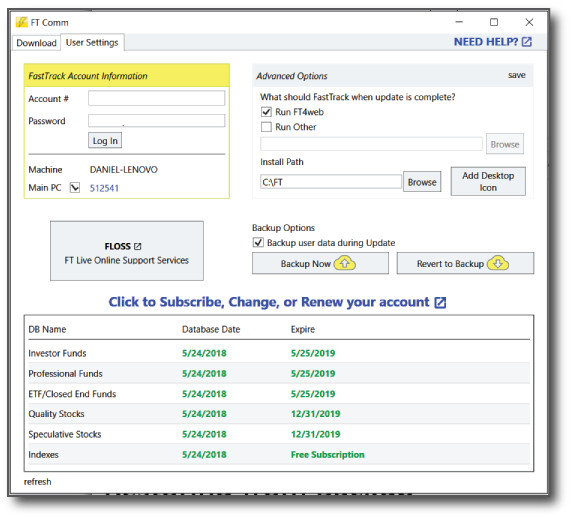
Account and Password
Your account credentials are unique to your account. Do not share with others.
You must enter these credentials or FT Comm cannot upgrade your programs or update your data. Values automatically save as you enter them.
Lost your credentials? Call 866-295-0166 during business hours (8:00AM-5:00PM Central market days) x 1
FLOSS: FastTrack Live Online Support Services
Click to connect to your desktop so support can see your screen. We can help and train you live online.
Typical workflow:
- Call 866-295-0166 x 2 first
- Support tells you to click FLOSS if needed
- Support connects to assist you remotely
Advanced Options
Run Program After Updating
Choose what happens after FT Comm completes an update:
- FT4Web: Automatically launches the FastTrack Charting Ranking Program
- Run Other: Choose any program or batch file to run
Install Path
The location where FT4web is installed on your computer.
Default: C:\FT (recommended for most users)
Important: Values automatically save as you change them.
?? Do not install in Windows "Program Files" path. Security programs may protect this folder and prevent modifying programs and data after initial installation.
Backup & Restore
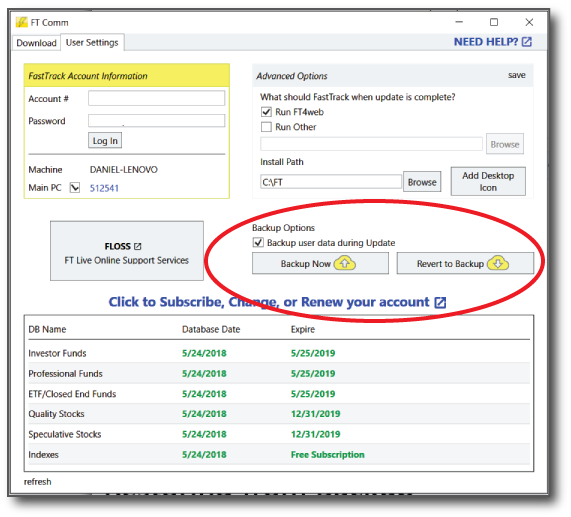
FT Comm backs up your critical FT4web files including families, signals, chart settings, spreadsheet settings, and more.
What Gets Backed Up
The following locations are saved:
- [ftroot]\userdef
- [ftroot]\ft4win\SPREADSHEETS\USERDEF
- [ftroot]\ft4win\PARAMETERS\USERDEF
- [ftroot]\ft4win\CHARTDEF\USERDEF
- [ftroot]\ft4win\EXPORTS\USERDEF
- [ftroot]\ft4win\SIGNALS\USERDEF
- [ftroot]\ft4win\SIEVES\USERDEF
- [ftroot]\ft4win\TRADES\USERDEF
- [ftroot]\ft4win\TRENDS\USERDEF
- [ftroot]\ft4win.ini
Creating Backups
FT Comm backs up your data two ways:
1. Forced Backup
Click the "Back Up Now" button to immediately back up the current machine to the cloud.
2. Automatic Backup
Check "Backup user data during update" and FT Comm saves your files and settings to the cloud automatically when you update.
Recommendation: Enable automatic backups to ensure your custom settings are always protected.
Restoring from Backup
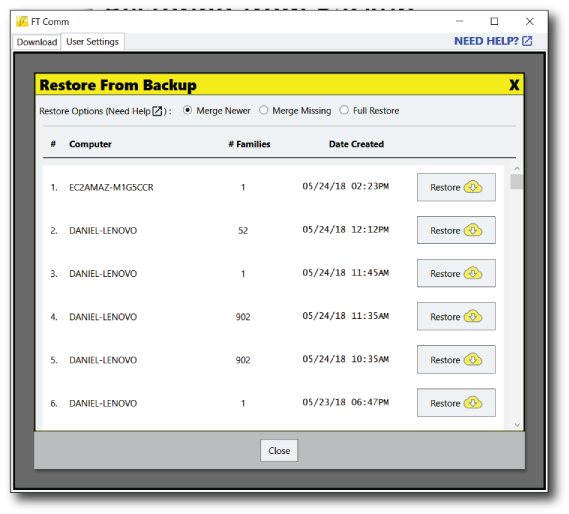
To restore from a backup:
- Open FT Comm
- Click the User Settings tab
- Click the "Revert to Backup" button
- A list of previous backup points displays on screen
- Select your backup options
- Select the backup to restore
- Click the "Restore" button on the right
Safety note: Before any backup restore, FT Comm saves your current files to your local [ft root]\Backups folder as a .ZIP file with the naming convention: backup-[yyyyMMdd] [hh-mm-ss-tt]-[uniqueid].zip
Backup Restore Options

Choose one of three restore methods:
1. Merge Newer
- Adds files that exist on FT's servers but not on your local machine
- Replaces local files that are older than the server versions
- Best for: Recovering deleted files while keeping recent changes
2. Merge Missing
- Adds files that exist on FT's servers but not locally
- Does not replace, delete, or modify existing local files
- Best for: Recovering deleted files without overwriting anything
3. Full Restore
- Updates your machine exactly as it was when the backup was created
- Deletes contents of backup folders and replaces with backup data
- Best for: Complete system restoration after a crash
Main PC & Licensing
FT4web is licensed to a single computer (subscription agreement). This computer is your "Main PC" and can perform unlimited updates while your subscription is current.
Change Main PC
To designate a different computer as your Main PC:
- Open FT Comm on the new computer
- Click the Main PC checkbox on the User Settings tab
- The "Single Computer Limitation" screen appears
- Select "Convert this computer to my Main PC"
- Follow payment instructions
- Your computer instantly converts to your Main PC
Use case: When you get a new computer and want to make it your primary FT4web machine.
Additional Computers
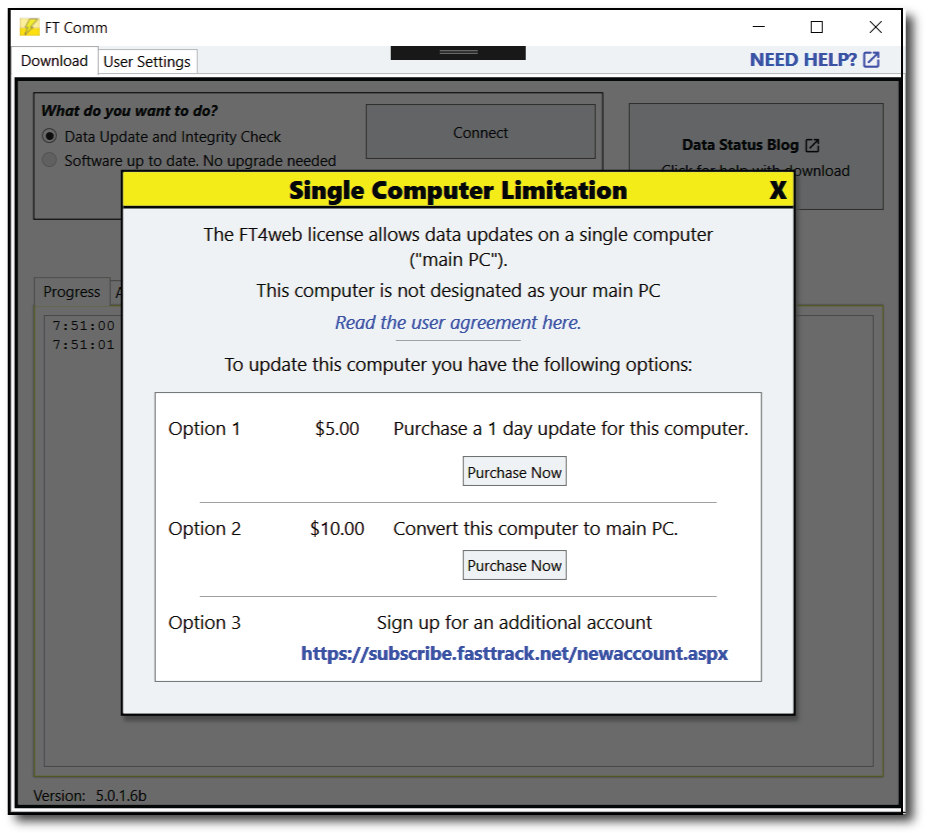
You can update FT4web on non-Main PC compters (laptop, home office, etc.) using a one-day update.
How One-Day Updates Work
- Open FT Comm on the non-Main PC computer
- On the Download tab, click the Connect button
- The "Single Computer Limitation" screen appears
- Select "Purchase a 1 day update for this computer"
- Follow payment instructions
- Your computer instantly gets access to current data
One-Day Update Access Window
Access lasts from purchase time until midnight Central time.
Example: If you purchase at 10am Eastern on Tuesday:
- Download Monday's data instantly
- Download Tuesday's data after ~7:30pm Central
- Access expires at midnight Central
Use case: Traveling with a laptop, demonstrating at a friend's house, or working from a second location occasionally.
Best Practices
Daily Routine
- Open FT Comm
- Click "Connect" to update data
- Launch FT4web from your desktop icon
- Start charting and analyzing
Weekly Routine
- Check that automatic backups are enabled
- Verify your data updated successfully (check the date in FT4web)
Monthly Routine
- Check for FT Comm software updates (yellow banner)
- Review your backup history in case you need to restore
When Issues Arise
- Check the Troubleshooting Guide
- Call support: 866-295-0166 x 2
- Use FLOSS for remote assistance if requested
Support
Phone: 866-295-0166
- Extension 1: Account issues
- Extension 2: Technical support and training
Business Hours: 8:00AM-5:00PM Central (market days)
Online Resources: