Fix Family Tab Problems
Use this guide when the Family tab in FT4web does not display correctly, freezes, or behaves strangely.
This problem is usually caused by Windows touch screen, pen, or on-screen keyboard components interfering with FT4web's older family tree control. Some third-party form-filling software can also trigger the issue.
These steps change Windows device or service settings. If you rely on a touch screen, pen, tablet mode, or on-screen keyboard, call support before continuing: 866-295-0166 x 2.
Step 1: Update Windows and Restart
Before changing settings:
- Install all available Windows updates.
- Restart the computer.
- Open FT4web and test the Family tab again.
Do not continue until Windows updates are complete.
Step 2: Check Family File Names
FT4web works best when family file names do not contain spaces.
- Open File Explorer.
- Go to C:\FT\USERDEF.
- Look for
.famfiles with spaces in the file name. - Rename those files and replace spaces with underscores.
Example:
My Family.fam
Rename to:
My_Family.fam
If you have old family files you no longer use, you may delete them. If you are not sure, leave them in place or make a backup first.
Windows 11 Fix
On Windows 11, the most common fix is to disable the touch screen, touch pen, and Text Input Management Service.
Disable the Touch Screen
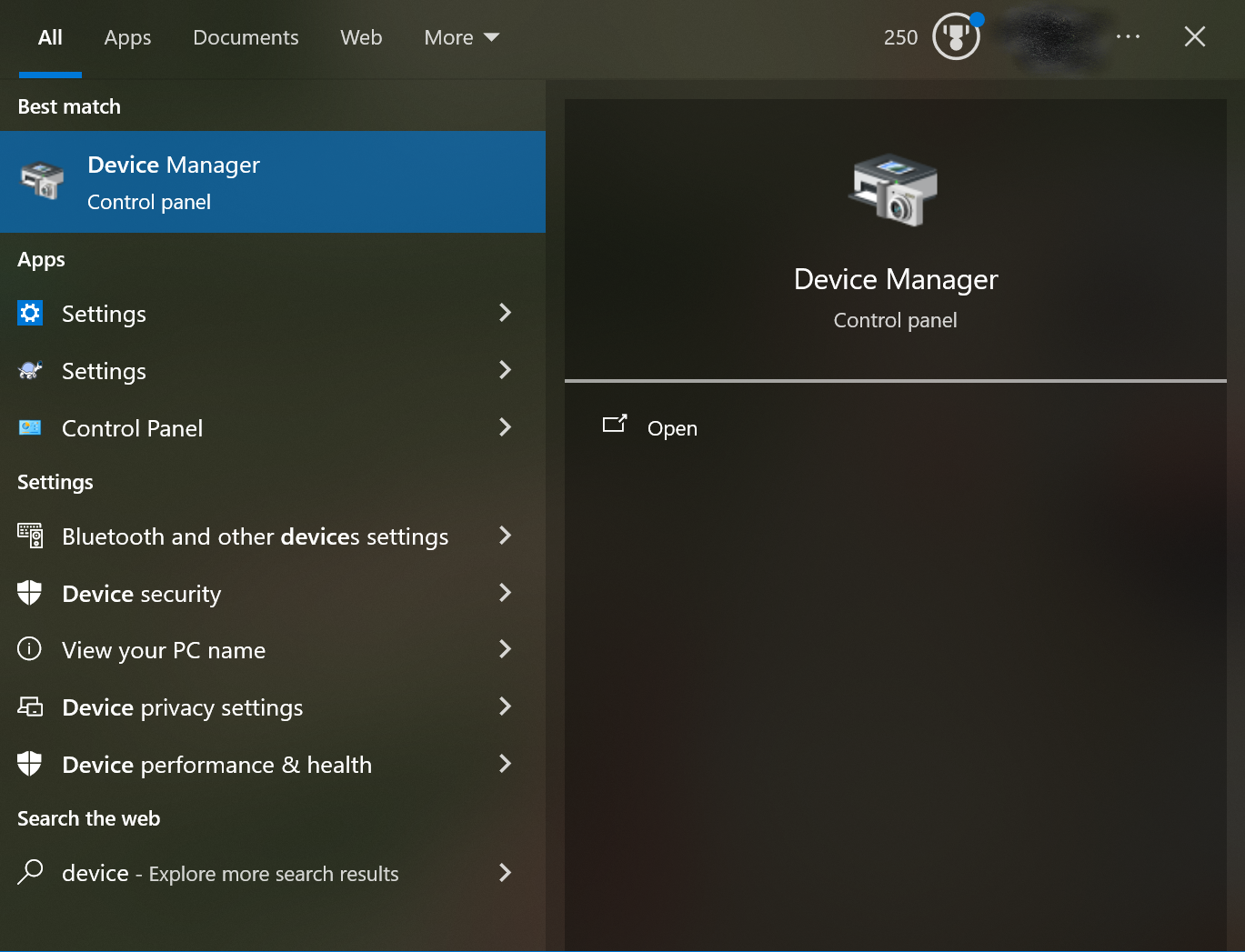
- Click Start.
- Search for Device Manager.
- Open Device Manager.
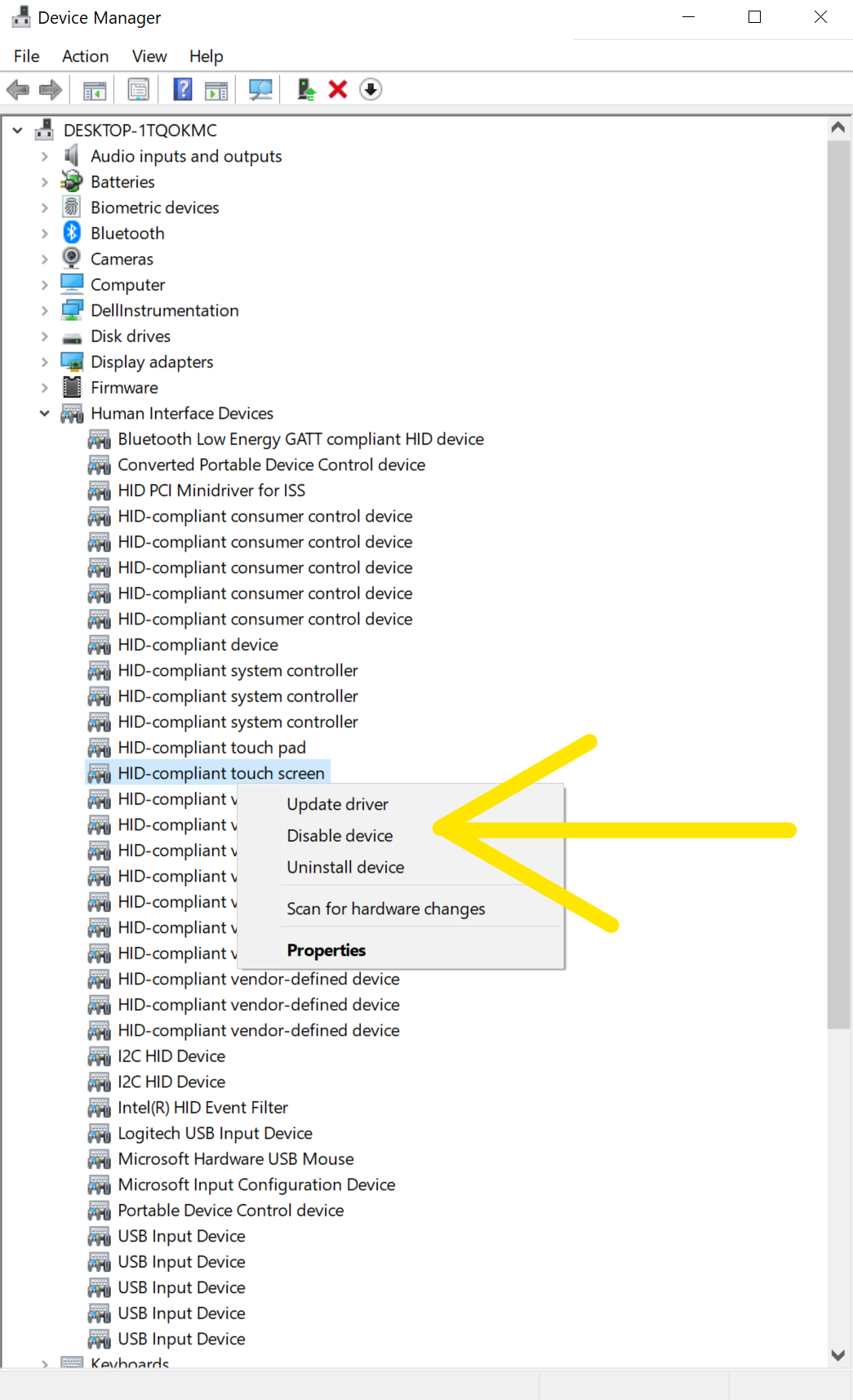
- Expand Human Interface Devices.
- Find HID-compliant touch screen or a similarly named touch screen device.
- Right-click it and choose Disable device.
Disable the Touch Pen
- In Device Manager, stay under Human Interface Devices.
- Look for HID-compliant pen, HID-compliant digitizer, or a similar pen device.
- Right-click each related pen or digitizer item.
- Choose Disable device.
- Confirm the prompt.
Disable Text Input Management Service
Press Windows + R.
Type:
services.mscPress Enter.
Find TextInputManagementService.
Right-click it and choose Properties.
Set Startup type to Disabled.
If the service is running, click Stop.
Click OK.
Restart the computer.
Open FT4web and test the Family tab.
Windows 8 and Windows 10 Fix
On Windows 8 and Windows 10, disable the touch keyboard and handwriting service.
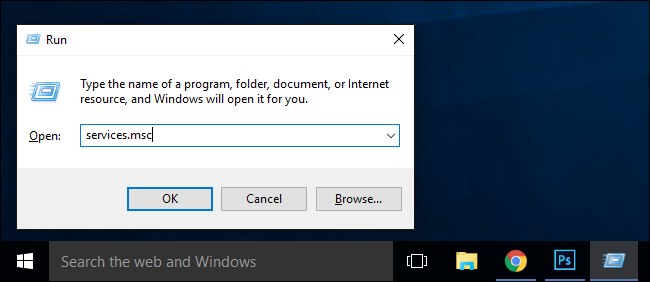
Press Windows + R.
Type:
services.mscClick OK.
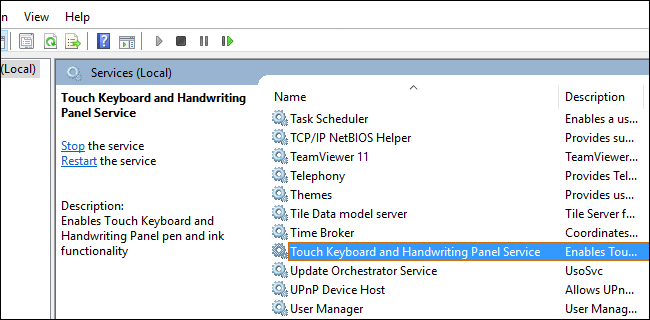
- In the Services window, click the Name column to sort services alphabetically.
- Find Touch Keyboard and Handwriting Panel Service.
- Double-click that service.
- Set Startup type to Disabled.
- If the service is running, click Stop.
- Click Apply if available.
- Click OK.
- Restart the computer.
- Open FT4web and test the Family tab.
If the Problem Continues
If disabling the touch keyboard or touch input service does not fix the Family tab, call technical support at 866-295-0166 x 2.
Support may ask you to run an additional Windows command to remove the tablet input service:
sc delete TabletInputService
Do not run this command unless support asks you to. It changes a Windows service and should be used only after the normal steps above fail.
RoboForm
RoboForm can also cause the Family tab problem because it may install or activate touch input components even on computers that use a normal keyboard.
To test this:
- Find the RoboForm icon in the Windows taskbar.
- Right-click the RoboForm icon.
- Choose Exit.
- Open FT4web and test the Family tab again.
If the Family tab works after closing RoboForm, leave RoboForm closed while using FT4web or contact RoboForm support for help disabling the conflicting feature.
Source
This page replaces the older support article: Family Tab Problems and Solutions.