Set Up FT4web on a New Computer
Use this guide when you bought a new Windows computer and want to move FT4web from your old computer.
Before you install FT4web: FastTrack is now available in your browser at new.fasttrack.net. It works on Windows, Mac, iPad, Chromebook, and other devices with no installation. If you would rather avoid desktop setup entirely, see Migrate to FastTrack.
What You Need Before You Start
- Your FT4web account number
- Your FT4web password
- Your old computer, if you want to transfer your families, chart settings, signals, and other custom files
- Administrator permission on the new Windows computer
- An internet connection
If you do not know your account number or password, call 866-295-0166 x 1 during business hours.
Step 1: Back Up Your Old Computer
Do this on the old computer before installing on the new computer.
- Open FT Comm.
- Click the User Settings tab.
- Write down your account number and password.
- Click Back Up Now.
- Wait for the backup to finish.
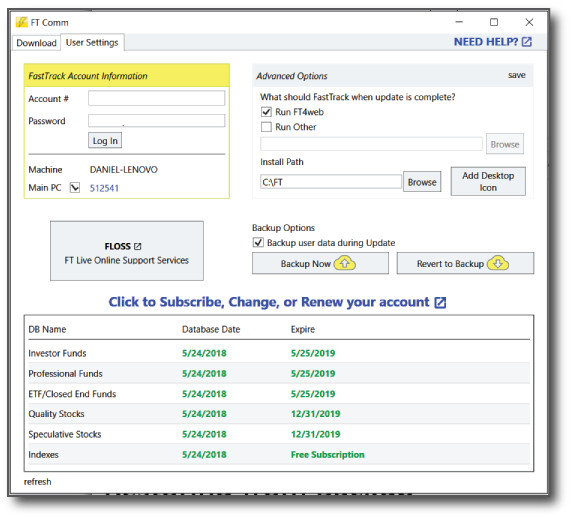
This saves your FT4web families, chart settings, spreadsheet settings, signals, and other custom files so you can restore them on the new computer.
Step 2: Download FT Comm on the New Computer
Do this on the new computer.
Open your web browser.
Download the FT Comm installer ZIP:
Open your Downloads folder.
Right-click ftcomminstall.zip and choose Extract All.
Open the extracted folder.
Double-click setup.exe.
Follow the installer prompts.
If Windows or your antivirus shows a warning, choose the option that allows the program to run. The wording may be Run, Run anyway, Allow access, or Do not block.
Do not run the .msi file directly unless support tells you to. Use setup.exe.
Alternate Installer
If the ZIP installer does not work, try the alternate ClickOnce installer:
Step 3: Enter Your Account Information
When FT Comm opens, enter:
- Your account number
- Your password
- Install path: C:\FT
Use C:\FT unless support has told you to use a different location.
Do not install FT4web in Program Files. FT4web needs permission to update data and save settings, and Windows often blocks older programs from writing inside Program Files.
If you do not see the first-time setup screen, click the User Settings tab and enter your account information there.
Step 4: Make This Your Main PC
On the new computer:
- Open FT Comm.
- Click the User Settings tab.
- Check Main PC.
- Choose the option to convert this computer to your Main PC.
- Follow the payment instructions if prompted.
Your FT4web subscription has one Main PC. If this new computer is replacing your old computer, this step tells FT4web that the new computer is now your primary computer.
Step 5: Download the FT4web Data
- Click the Download tab.
- Select Update Data and Integrity Check.
- Click Connect.
- Wait for the download to finish.
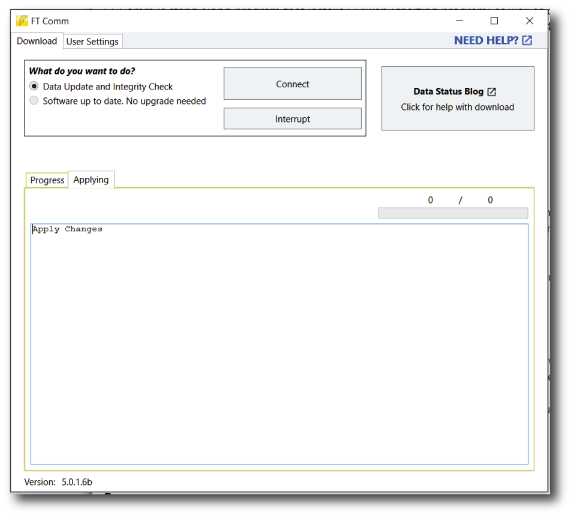
This installs the FT4web charting program and downloads the current data files.
Step 6: Restore Your Backup
After the data update finishes:
- Click the User Settings tab.
- Click Revert to Backup.
- Select the most recent backup from your old computer.
- Choose Full Restore if you want the new computer to match the old computer.
- Click Restore.
- Wait for the restore to finish.
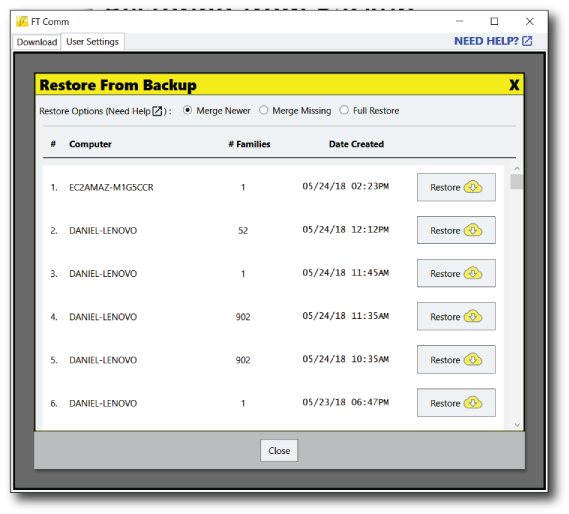

Use Full Restore when you are replacing your old computer and want your families, chart settings, signals, and other settings copied to the new computer.
Step 7: Start FT4web
When the update and restore are complete, start FT4web from the desktop icon named Charting - Ranking.
Check that:
- FT4web opens.
- You can display a chart.
- Your custom families or chart settings are present.
- You can close FT4web without error messages.
If all four checks pass, your new computer is ready.
If Something Goes Wrong
FT Comm will not install
- Make sure you are using a Windows computer.
- Make sure you have administrator permission.
- Temporarily allow FT Comm in your antivirus or Windows security prompts.
- Use the default install path: C:\FT.
FT Comm will not connect
- Check your internet connection.
- Confirm your account number and password.
- Make sure your firewall or antivirus is not blocking FT Comm.
Your families or chart settings are missing
- Go back to the old computer and click Back Up Now again.
- On the new computer, use Revert to Backup again.
- Choose Full Restore if the new computer should match the old computer.
You do not have the old computer anymore
Try Revert to Backup on the new computer anyway. If automatic backups were enabled before, your previous backup may already be available.
If you need help, call 866-295-0166 x 2 during business hours.
Need Help?
Call 866-295-0166:
- Extension 1: Account number, password, billing, subscription questions
- Extension 2: Installation help and technical support
- Extension 3: FastTrack browser version training
Business hours: 8:00 AM-5:00 PM Central on market days.